
The fit comparison
Compare the published fit limits
Use the monitor size and load to shortlist a head. Check the laptop’s feet, vents and ports against the usable tray area.
Scroll across the table for every fit check.
| Model | Monitor fit | Laptop tray | Check first |
|---|---|---|---|
| Duronic DM35L1X1 monitor and laptop mount For a 13–27″ monitor and a laptop | 13–27″, up to 8 kg | Laptop tray supplied. Check usable size. | Confirm tray contact, vents and stops. |
| VIVO STAND-V002C monitor and laptop mount For a wider monitor or tray | 13–32″, up to about 10 kg | Approx. 35.6 × 29.2 cm | Check usable area and the supplied fixing revision. |
Plan where the two screens will sit
Decide which display you use most. Put that one in front of your working position, then find a place for the other where the lid and cables can move. Draw the desk, screen edges and laptop tray as seen from above. Remember that both branches start around a shared pole. A layout with plenty of width can still be short of reach if the pole sits near the wrong corner.
Mark the keyboard and mouse position before choosing the laptop height. If the tray raises the laptop above a comfortable typing height, use separate input devices. Check webcam position on a normal call. A laptop tray can also overlap the monitor’s lower corner when both branches turn inwards.
Duronic DM35L1X1 for a smaller monitor
Duronic lists a 13–27 inch monitor up to 8 kg on the DM35L1X1 with 75 × 75 or 100 × 100 mm VESA. The other branch carries the laptop tray. Check the actual usable tray size and laptop loading limits in the manual for the supplied variant. An arm rating alone does not describe how a laptop sits in its tray.
For a 13–27″ monitor and a laptop
Duronic DM35L1X1 monitor and laptop mount
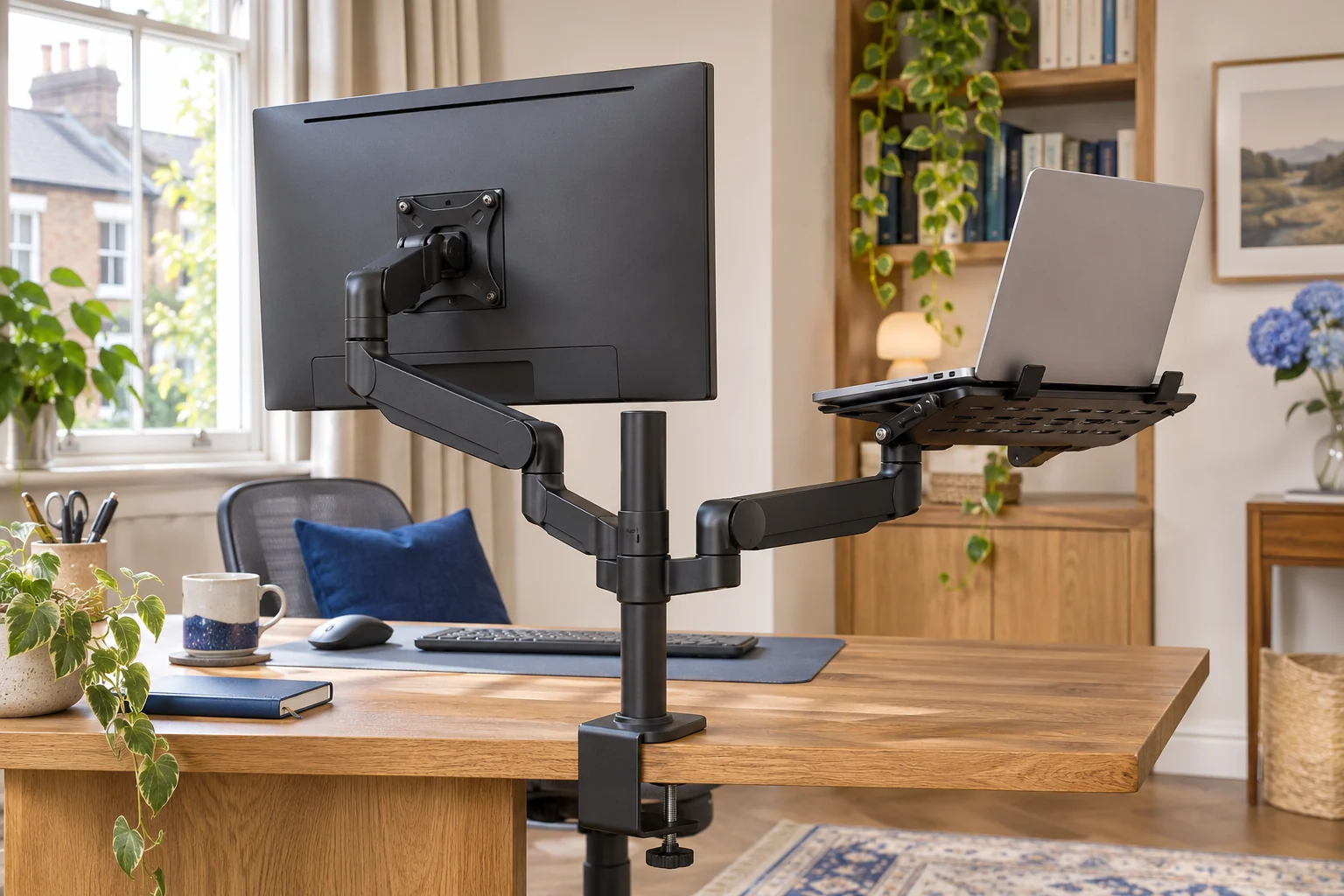
The DM35L1X1 puts a monitor and a laptop tray on separate arms around one pole.
Check the exact laptop tray's usable area and permitted angle, plus the monitor load and clamp position.
- 13–27″ monitor
- Up to 8 kg monitor
- 75 × 75 or 100 × 100 mm VESA
Check the front stops against the front edge of your laptop, including tapered corners or a clip-on case. Place the laptop on a level template and mark the feet. Ask the maker to confirm which contact positions and tilt angles it approves if the fit is close.
VIVO STAND-V002C for a wider tray
The VIVO accepts a listed 13–32 inch monitor up to 22 lb, about 10 kg. Its published tray dimensions are 14 × 11.5 inches, about 35.6 × 29.2 cm. VIVO lists laptops up to 17 inches. Use the case dimensions and supported contact area alongside that diagonal.
For a wider monitor or tray
VIVO STAND-V002C monitor and laptop mount
The VIVO combines a monitor head with a ventilated tray on a shared desk pole.
Trace the laptop base and check ventilation, tray stops and cable exits before choosing the arm position.
- 13–32″ monitor
- Up to 22 lb (about 10 kg)
- Approx. 35.6 × 29.2 cm tray
A laptop 35 cm wide leaves just 6 mm in the nominal width of a 35.6 cm tray. Stops, lips or a case can use that space. Measure with plugs connected and the lid open. Check the exact fixing and desk thickness in the supplied instructions because retailer descriptions can refer to different clamp versions.
Check both loads and both cable routes
Find the monitor’s weight without its original stand. Follow the maker’s instructions for the tray load, desk fixing and arm positions. Keep the laptop vents clear and leave access to plug in the charger without dragging the device sideways. After installation, move both branches slowly through the positions you intend to use and check for pulled leads or contact. If the tray cannot support the feet or the approved angle gives poor viewing, use a separate laptop stand on a stable surface.
Common questions
Can a laptop go straight on a VESA head?
Use a laptop tray that the arm maker approves, with the proper attachment and support for the case.
Does a 17-inch listing guarantee my laptop fits?
Check case width, depth, feet, vents and the position of the stops. A diagonal alone cannot confirm fit.
Can both arms be set to the same height?
Check the available collar and head positions and the actual centres of your two displays.
Can I type on the raised tray?
For sustained work, use separate input devices so the keyboard and screens can be set independently.
How much cable slack should I leave?
Check both branches at their furthest working positions. Leave relaxed bends at the laptop and monitor ports.
Sources and selection
Sources and Amazon UK listings checked in November 2026. This guide uses published specifications and fitting guidance.