
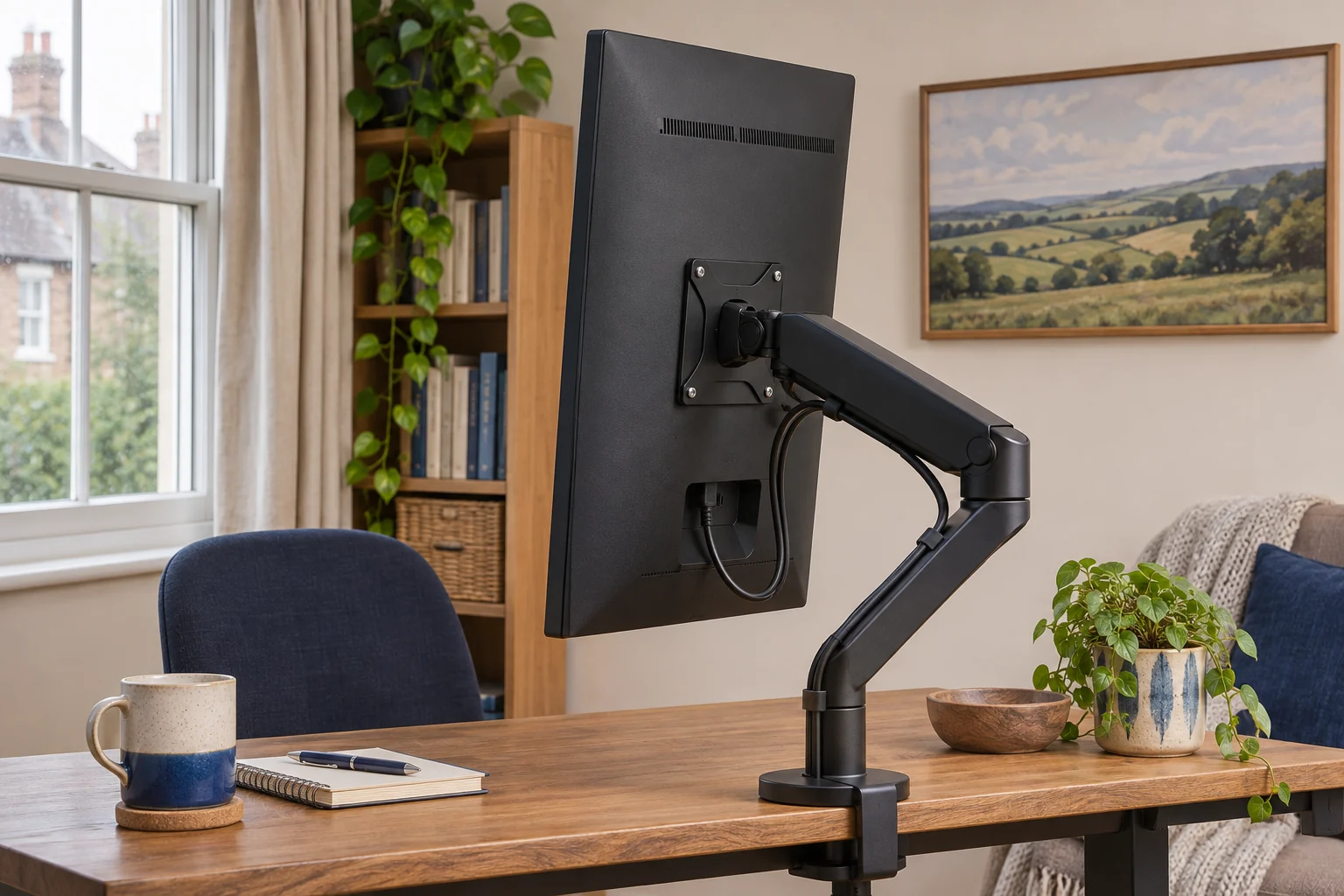
Measure from the VESA pivot to the corners
Confirm the screen and mount permit the orientation you want. Note the monitor’s outside width and height, including any chin, and mark the centre of the VESA holes on a sketch of the back. The holes may sit off-centre, so measure from that point to each corner. The longest measurement gives you a conservative sweep radius if the screen turns around that point. Check both the path and the final position.
For a 60 × 36 cm case with a centred pivot, the corner is about 35 cm from the pivot. A 32 cm pivot height above the desk might clear the lower edge in portrait, where the screen reaches about 30 cm below centre, but still let a corner clip the worktop during the turn. Raise the arm within its approved range and clear nearby objects before rotating. An offset VESA position can increase the space needed on one side.
Check the single arm’s usable height
The Invision MX200 is listed for 19–32 inch screens at 2–9 kg and accepts 75 × 75 or 100 × 100 mm patterns. Check that the exact plate can rotate with the screen attached. Measure the pivot height at the reach you actually use. A published maximum with the arm folded does little for a display you want to sit far forward.
An everyday adjustable screen
Invision MX200
The gas-assisted arm suits a single compatible screen you move between tasks. It frees the desk from a broad stand and gives you a choice of edge clamp or through-desk fixing.
A centred clamp can leave the elbow in the way of the wall. Check whether the clamp can sit to one side while keeping the screen centred. Match the fitting diagram to the base supplied.
- 19–32″
- 2–9 kg
- VESA 75 × 75 or 100 × 100 mm
Check shelf height as well as the worktop. The top corner needs room to pass and the final upper edge may sit above your comfortable reading area. Open a real document and see where the text you read most sits. Adjust the screen so you can read it with your head in a comfortable position.
Allow for the neighbouring screen
The Duronic DM35V2X1 is a vertical dual mount rated for two 13–27 inch screens of up to 8 kg each. The maker lists 360° rotation. That describes movement at the mount. Check whether both screens and the desk leave room for it in your arrangement.
A compact two-screen stack
Duronic DM35V2X1
Two separate mounting heads on a tall pole put compatible screens one above the other. Short arms suit a stack that stays largely in position.
Each screen must meet the 13–27 inch and 8 kg limits. The 80 cm figure is pole height, not a guaranteed screen-centre range. Check casing heights and VESA offsets. The optional DM-GR-01 grommet kit is separate.
- 13–27″ each
- Up to 8 kg each
- VESA 75 × 75 or 100 × 100 mm
Mock up the two screen outlines at their intended pivot centres. A portrait display below a landscape one can need more vertical separation. Measure space to turn each screen without catching the other display or its cables. Confirm the useful height of both mounts, including space taken by collars, before buying.
Keep ports and cables clear through the turn
Some plugs that point down in landscape will point sideways in portrait. Trace each lead from the screen to the first support point and leave a relaxed loop. Check the connectors and neighbouring screen throughout the planned movement. Stop if the cable pulls or a corner approaches a collision. Route leads after the screen has reached the position you will use, then test the other positions you intend to keep.
Set display orientation in the operating system after the screen is secure. Check that text is upright and that the display arrangement matches your desk. If you rotate often, check both software orientation and the physical sweep each time you rearrange the desk.
If a lead pulls as you rotate, check the slack at each joint before closing the cable covers.
Common questions
Can every monitor be used in portrait?
Check the screen’s instructions, ventilation and orientation limits as well as the arm’s rotation.
How high should the pivot be?
Measure to the furthest corner and allow room through the sweep. Check the final viewing position separately.
Why does my monitor clear vertically but hit the desk while turning?
A corner can sweep lower than the final bottom edge. Raise the pivot within its approved range and recheck.
What should I do about tight cables?
Give the last moving section a relaxed loop and check both ends through the turn. Re-route any cable that pulls on a port.
Can I mount two portrait screens on a vertical pole?
Check both sizes and weights, the usable centres and the clearance between corners before choosing the pole.
Sources and selection
Sources and Amazon UK listings checked in November 2026. This guide uses published specifications and fitting guidance.